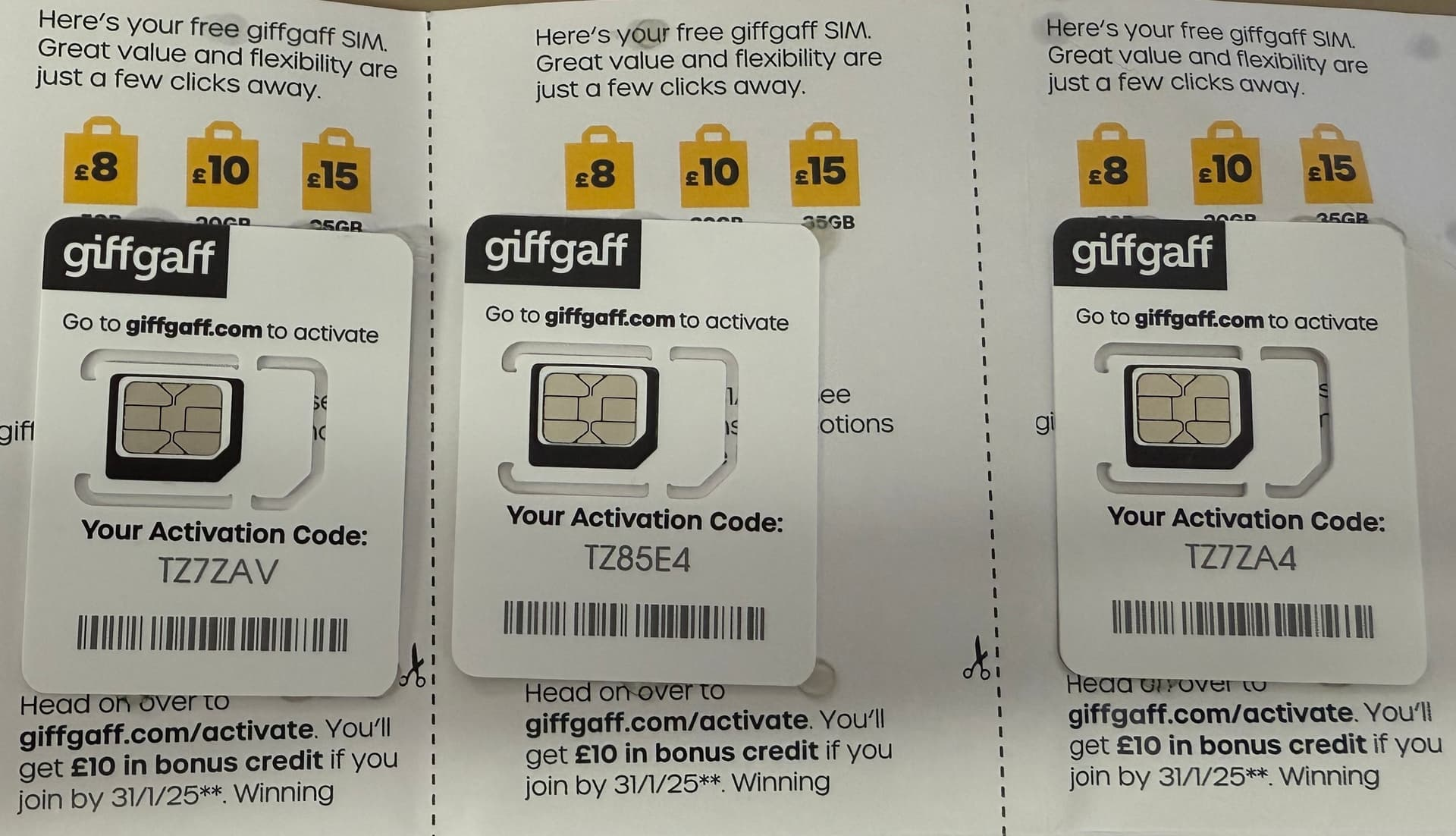
Once giffgaff is activated, you can put the SIM in your phone and use it. The physical giffgaff SIM is not fussy about devices: it works in almost every phone sold in mainland China, even 2G/4G feature phones.
giffgaff signal
After activation it takes about 10 minutes (a few hours if it is slow, never more than 24 hours) before there is a signal;
Once the signal is up, your phone receives giffgaff's "welcome to China" text for first joining the network.
What to do about no service or not being able to send or receive texts:
If there is no service, or you cannot send or receive texts, 30 minutes after activation, turn on flight mode, wait 15 seconds and turn it off. Then go to Settings > Network > SIM/Mobile network > giffgaff > Network selection, turn off automatic network selection and choose the China Mobile 4G network by hand.
If the phone says it cannot recognise the SIM after activation, restart the phone and toggle flight mode. If that still does not work, try another SIM slot or another phone.
💡
Note: giffgaff signal differs between regions in China. Choose the China Mobile network first, and China Unicom second.
Signs that giffgaff has a signal
- You receive giffgaff's "welcome to China…" text: there is a signal;
Dial *100# to check your credit; if the balance comes back, there is a signal;The *100# short code no longer works.- Text NUMBER to 2020 or 43430; if you receive a text with your number, there is a signal.
Your giffgaff number
Note that the right format for everyday use of a giffgaff number is +44 7*** or 0044 7***. Press and hold 0 on the dial pad to type +;
The 07** number with a leading 0 shown on the website is the number as used inside the UK. It can also be used to log in to your giffgaff account.
Besides logging in to the website or app, you can find your giffgaff number with the free official text: text number to 43430 or 2020
How to change your username
New users can change their username the first time they log in. You only get one chance to change it; the link is in giffgaff's welcome email:
About voicemail
An apology to everyone: the claim that "voicemail costs you money" has been passed around for a long time, and I repeated other people's conclusion without testing it properly, which misled you. I have now tested it, and here are the facts:
giffgaff has voicemail turned on by default
Leaving voicemail on is fine, and hanging up on an incoming call yourself does not cost you anything
Switching off the phone with the giffgaff SIM in it does not lead to voicemail charges either
👍🏻 If you have already turned voicemail off, even better: your phone will be quieter.
Answering calls: leave giffgaff incoming calls alone. Do not answer and do not hang up; let them stop on their own. Hanging up costs money too, because the call is forwarded to voicemail by default;
After dialling ##002# to turn off voicemail, hanging up is no longer charged, and you can hang up freely;
Note: turning off voicemail with ##002# no longer works. giffgaff has changed the way to turn off voicemail outside the UK from dialling ##002# to contacting an official agent. Alternatively, dial ##002# or 1626 for free over WiFi Calling to turn it off. See the post in the Telegram channel (and its comments) for details:
Reference:
For iPhone users
Before putting the SIM into an iPhone, turn off iMessage/FaceTime; otherwise Apple sends a verification text in the background, which costs £0.30. The same applies when putting the SIM into a new iPhone;
You must turn off "Allow Mobile Data Switching"; otherwise the phone switches mobile data between the two SIMs automatically, and the giffgaff SIM will be charged roaming fees.
How: iPhone > Settings > Mobile Service > Mobile Data > Allow Mobile Data Switching, turn it off;
For Xiaomi and other Android phones
Before putting the SIM into the phone, turn off internet messaging, SMS location and automatic balance checks, so that the system does not send texts in the background and run up charges.
Charged £0.01
If you put the SIM into the phone before activating it, you are sometimes charged £0.01. This is giffgaff verifying data access. Ignore it and count it as keeping the number alive. It also shows that data works on the SIM, and you will not be charged again.
So it is best to activate first and insert the SIM afterwards.
If it bothers you, you can ask an official agent to refund the £0.01.
Where to reach giffgaff's official agents: https://support2.giffgaff.com/app/ask
Logging in to the website or app
The giffgaff website is giffgaff.com.
The official giffgaff app can be downloaded from the App Store or Google Play.
Log in to the website or app to check your credit and see your usage in detail.
You can log in with your 07*** number or your username. If you forget the username, look in the welcome email giffgaff sent you; if you forget the password, click forgot password on the login screen to reset it.
On the login screen you need to enter the code giffgaff sends you. By default it comes by text (get code by text), and it can also come by email (get code by email).
Setting up 2-step verification (2FA) lets you change the default way the code is sent:
Log in to the giffgaff website, and from the dashboard click security → 2-step verification to make email the default.
How to check your balance and usage
On the dashboard of the giffgaff website or the home screen of the app you can see your balance (my credit) and your usage (recent usage).
More:
- Usage shows the last 3 months; anything older is not shown. Usage for a day appears the next day;
- Checking the balance by text: in the UK, or over WiFi Calling in China, text INFO to 85075 to get your balance
How the balance changes:
- After sending a text or making a call you receive a charge notification text straight away; the day's usage appears the next day;
- After using data the balance usually changes at once, within a few minutes if slow, and by the next day at the latest. Refresh the giffgaff dashboard once or twice (a few more times if needed) to see the change;
How to change your number
A giffgaff number is generated at random on activation. Each person can also change to a new number twice for free, here:
Can I change / How do I change my giffgaff number? | giffgaff Help
After the first change it takes 4 hours to get a signal (10 minutes if it is quick). The second change has to wait 24 hours.
How to replace the SIM
If your giffgaff SIM is lost or damaged, or you want to go back from eSIM to a physical SIM, you can move your giffgaff number to a new blank giffgaff SIM (get one from me beforehand). Here is how:
Log in to the official giffgaff app and tap account > SIM > replace my sim > replace with new physical sim, then follow the prompts to finish.
It can also be done on the web: https://www.giffgaff.com/profile/details#simswap is where the SIM swap starts. Follow the prompts, enter the new SIM's activation code and go through the steps to complete the swap.
Reference:
How to switch to eSIM
👉
Update, October 2025: when switching from a physical SIM to eSIM, you must now receive a verification code by text on the physical SIM first
💡
Recommended: request the eSIM directly in the official app. There is no bonus credit, but a £10 top-up will still last more than ten years
giffgaff has supported eSIM since October 2023.
With an unlocked, non-Chinese-market eSIM phone you can switch to eSIM directly in the official giffgaff app: log in, tap Account > SIM > Replace my SIM > Switch to new eSIM and follow the prompts;
Note:
The official window for switching to eSIM is 11:30 am to 4:30 am the next day, Beijing time (the UK is 7 hours behind us in summer time and 8 hours behind in winter time)
UK time: You can only switch to an eSIM between 4:30am to 9:30pm
How to turn on WiFi Calling
WiFi Calling rates are far lower than roaming rates:
- With WiFi Calling on, answering any call is free;
- To UK +44 numbers: calls are £0.25/minute and texts £0.10 each;
- To China +86 or US +1 numbers: calls are £0.03/minute and texts £0.08 each;
giffgaff has three sets of rates:
PAYG users in China like us are charged the "roaming in China" rates: https://www.giffgaff.com/roaming-charges
With WiFi Calling on, you are charged the "calling the world from the UK" rates: https://www.giffgaff.com/international
People in the UK are charged the "UK to UK" rates by default: https://www.giffgaff.com/pricing
Phones that support WiFi Calling include iPhone, Samsung and Xiaomi
[No longer works] For how to turn on WiFi Calling, see this post:
A summary is in the channel updates:
The myth of the 3-month expiry
After logging in to the app or website you may see a notice at the bottom saying 3 months remain. That refers to the 3 months of free calls for new giffgaff users in the UK and has nothing to do with users in China. See:
The number still has to be kept alive every 6 months. The 6-month validity cannot be seen on the website dashboard or in the official app, but it is in the official help pages:
Receiving sign-up codes for Telegram, X, WhatsApp and others
💡
Two conditions for receiving codes: the China Mobile network and a clean IP.
Before requesting a code, make sure giffgaff is on the China Mobile network: phone Settings > Network > SIM/Mobile network > giffgaff > Network selection, turn off automatic network selection and choose the China Mobile 4G network by hand. (Note: in some Chinese provinces and cities the China Unicom network works better.)
When signing up for Telegram, X, WhatsApp and similar apps with a giffgaff number, use a clean IP wherever possible, because these platforms run risk checks on IPs and even on devices. An unclean IP is often the reason a verification text never arrives or an account gets banned, so choose a clean VPN or proxy node.
Checking how clean an IP is:
What to do when Telegram's verification text does not arrive:
- Reinstall Telegram: on Android, clear both the cache and the user data of Telegram; on iPhone, uninstall and reinstall it. Telegram sometimes wrongly decides you are logged in on another device, when in fact your IP is unclean or you logged in on this device and then uninstalled;
- Telegram X: download Telegram X from Google Play. It ignores other logged-in devices and gets the verification text directly;
- Use a new device: sometimes Telegram has flagged the device, so try another one, for example an iPhone instead of an Android phone;
- Change the number: request a new number for free on the giffgaff website. Each person can change to a new number twice for free: https://www.giffgaff.com/help/articles/how-do-i-change-my-giffgaff-number After the change it takes 4 hours to get a signal (10 minutes if it is quick); the second change has to wait 24 hours
X does not send a code, or says the carrier is not supported:
Switching to a clean UK IP fixes it.
WhatsApp does not send a code:
Switching to a clean UK IP usually fixes it.
Some group members receive WhatsApp verification texts reliably with giffgaff mobile data turned on (but watch your data use; giffgaff data is expensive)
If the device has been flagged, use another device (for example an Android phone instead of an iPhone).
⏰ How to keep the number
💡 With pay as you go, giffgaff has no monthly fee. A £10 top-up ends up as £15; send a text (a change in balance) once every 180 days to keep the number, at £0.30 a text, and £15 lasts 25 years in theory. (In other words, a top-up of a little over 90 RMB keeps the number for 25 years.)
Any change in balance keeps the number for 6 months. See the official help pages for details (translate the page in your browser to make it easier to read):
Neither the giffgaff website nor the official app shows how long the number is kept. An email usually arrives a month ahead to remind you, but it does not always get through, so set your own calendar reminder.
Ways to keep the number:
Send a text: the recommended way is to text yourself once every 180 days. Cost: £0.30 a text;
Use data: set a data limit beforehand. Cost: as little as £0.01;
WiFi Calling: make a call to keep the number. Cost: as little as £0.01;
Calendar reminder:
The giffgaff SIM does not have to stay in a phone, but do set a calendar reminder to keep the number regularly. On iPhone use the built-in Reminders app; on Android use TickTick. Do not cut it close to 180 days: set it to text every 175 days (25 weeks);
Notes:
The best way to keep the number: giffgaff can text its own number, with no need for another number. The format is +44 7*** or 00447***, and the text can say anything (but no more than 66 characters).
When texting another number, text Google Voice first if you can, or text between giffgaff numbers. In China, text a China Unicom number first and a China Telecom number second. giffgaff cannot exchange texts or calls with China Mobile numbers (China Mobile's risk controls are strict);
After activating the giffgaff SIM, send a text straight away (you can text yourself) to test that giffgaff works, which also keeps the number.
There is no need to text that day to keep the number; just text again after 170-odd days;To avoid high charges from turning on giffgaff mobile data by mistake, turn off roaming for giffgaff beforehand: phone > Settings > Network/Mobile network > SIM/giffgaff > turn off Data Roaming;